Objective
This SOP outlines the steps to complete your business profile and personal settings in the system, ensuring all necessary information is accurately entered and configured.
TABLE OF CONTENTS
Video Guide
Key Steps
1. Upload Business Logo and Complete Business Information 0:00
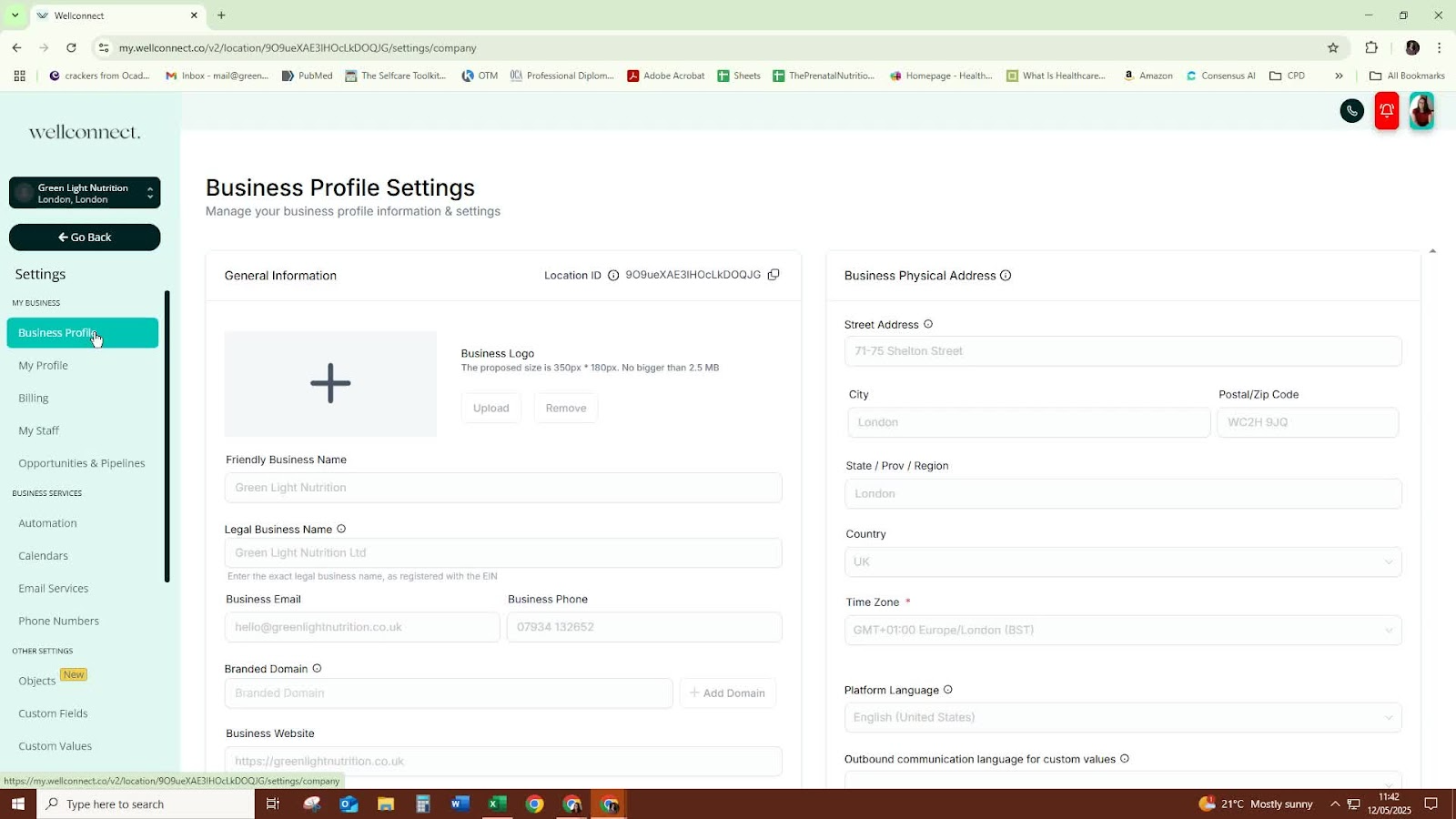
Upload your business logo.
Enter your business name.
Fill in your business address.
Input your registration number and any additional details as required.
2. Update Personal Profile 0:26
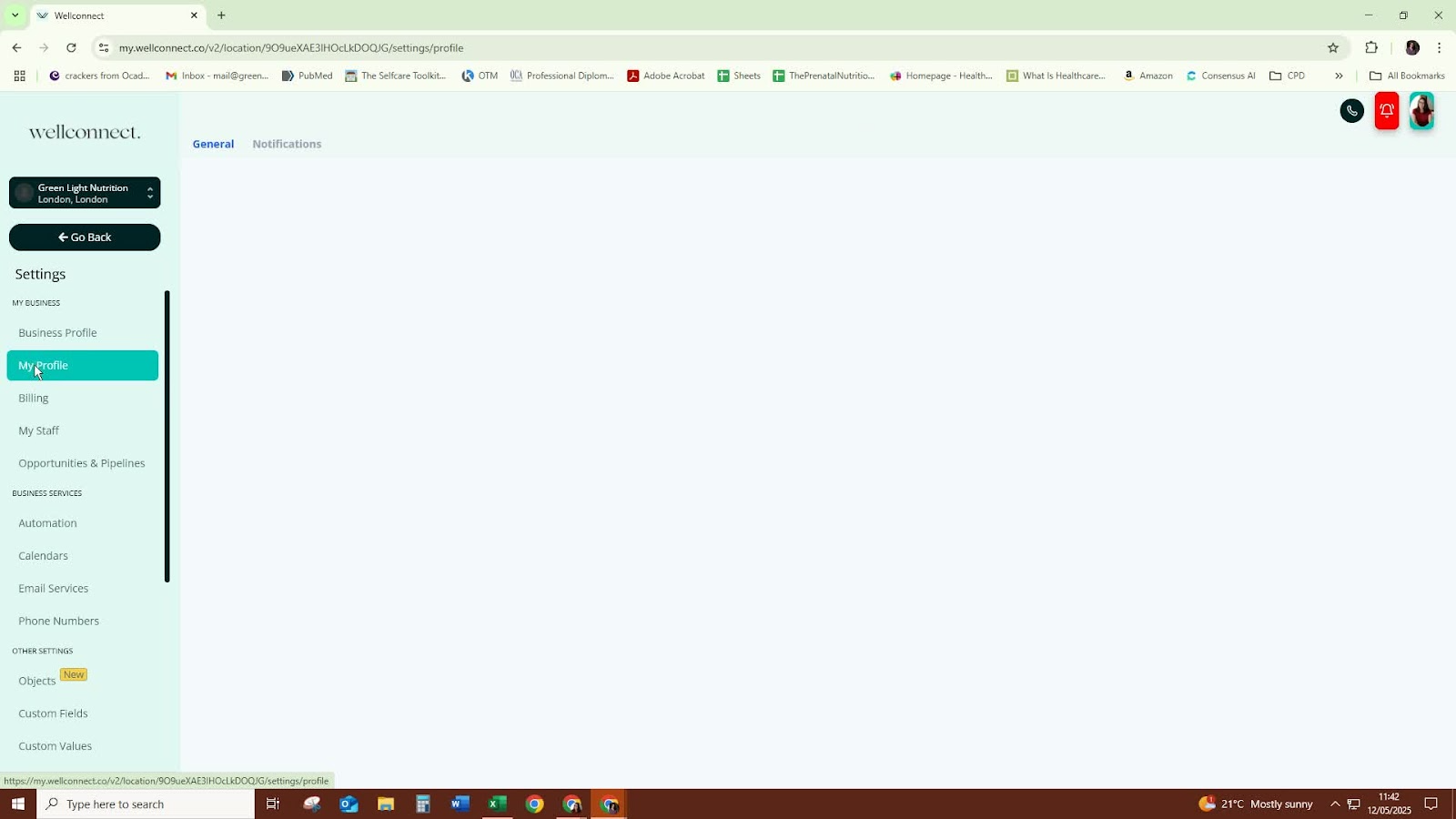
Add your personal image.
Create your email signature.
3. Connect Email Accounts 0:34
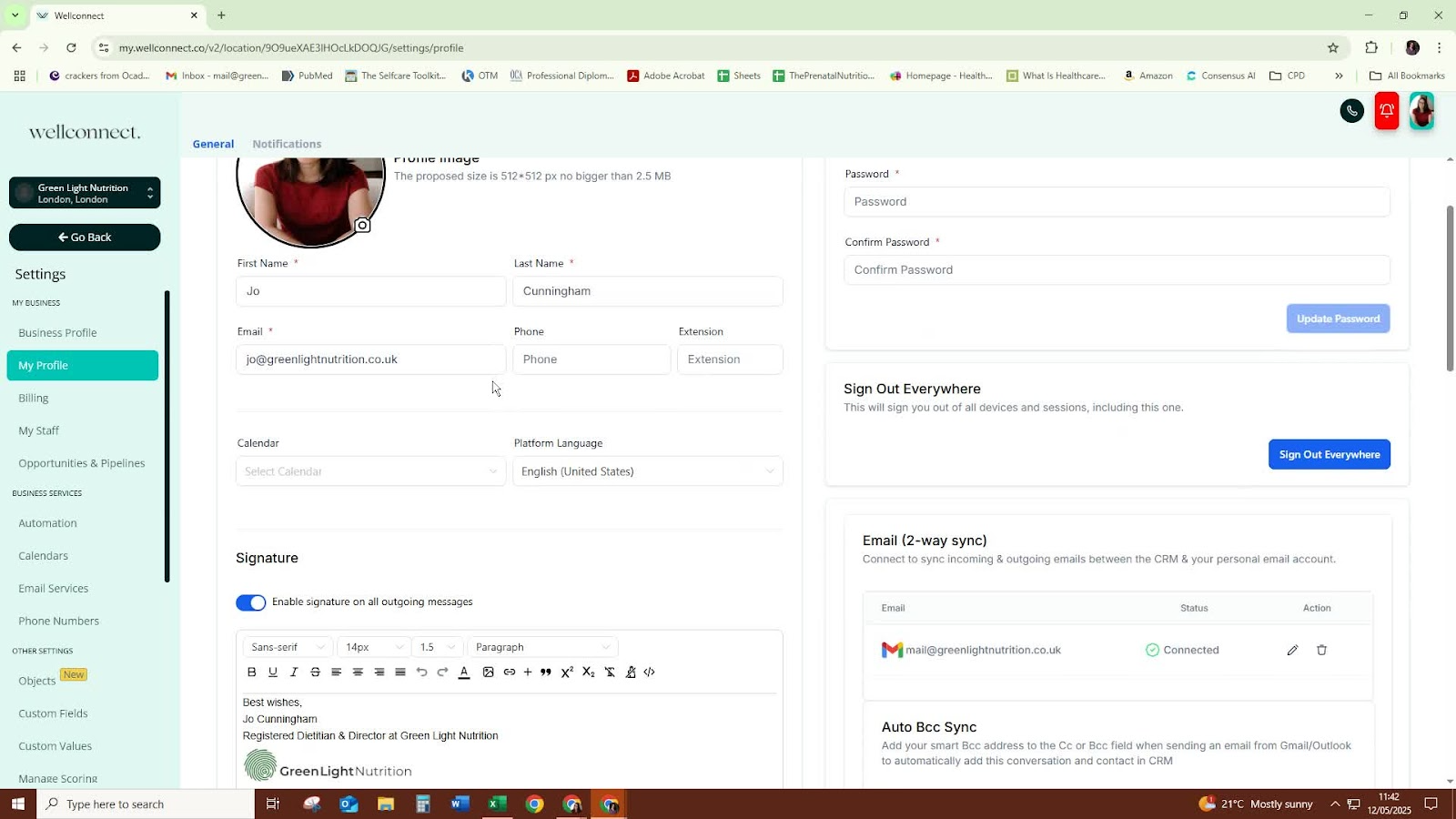
Click to add your email account.
Select the account you wish to connect.
Ensure incoming and outgoing emails are properly configured.
4. Connect Calendars 1:03
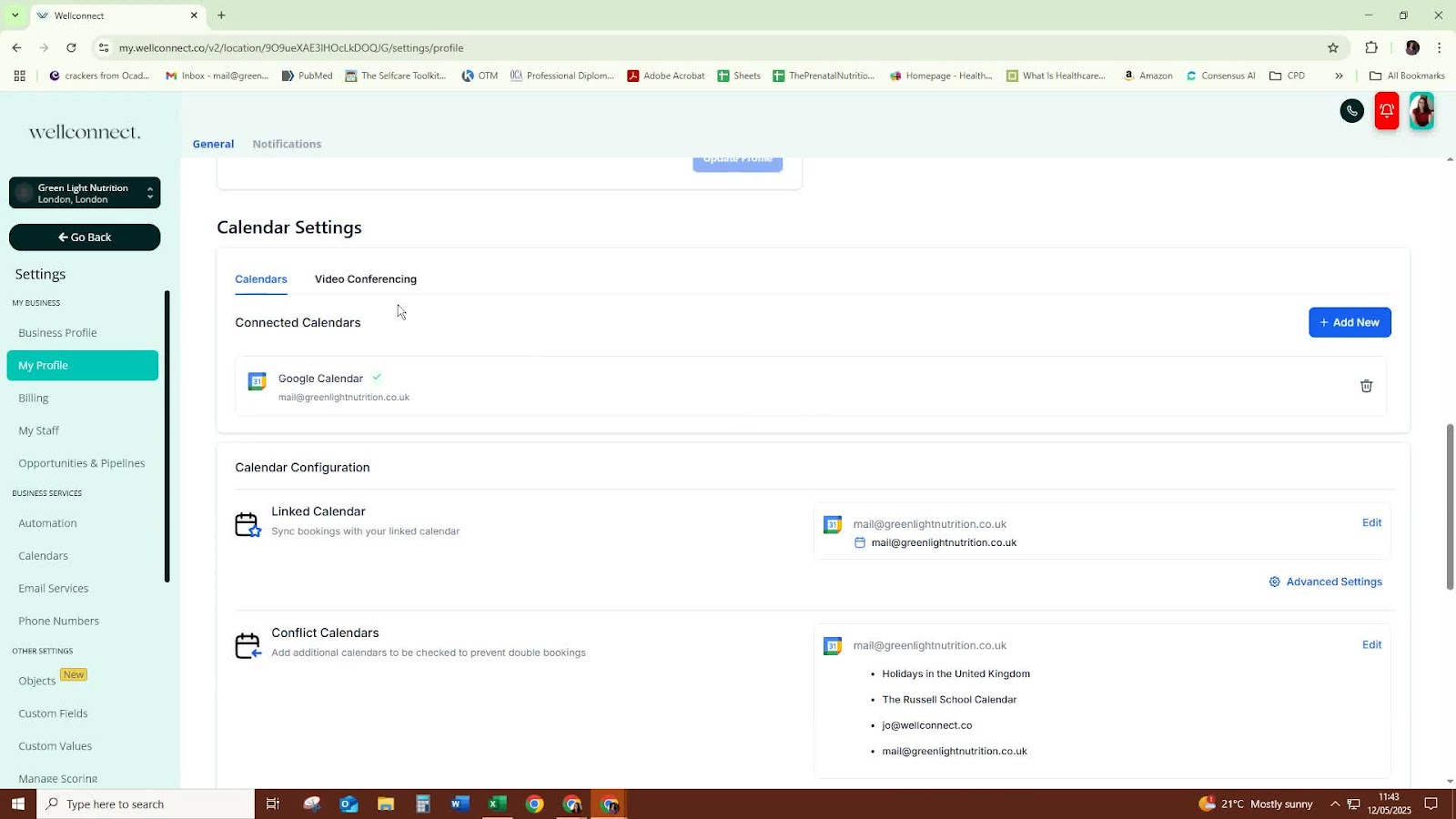
Add your calendar by selecting the appropriate option.
If using Google Calendar, ensure it is connected.
Check that the default one-way sync is enabled.
5. Set User Availability 1:39
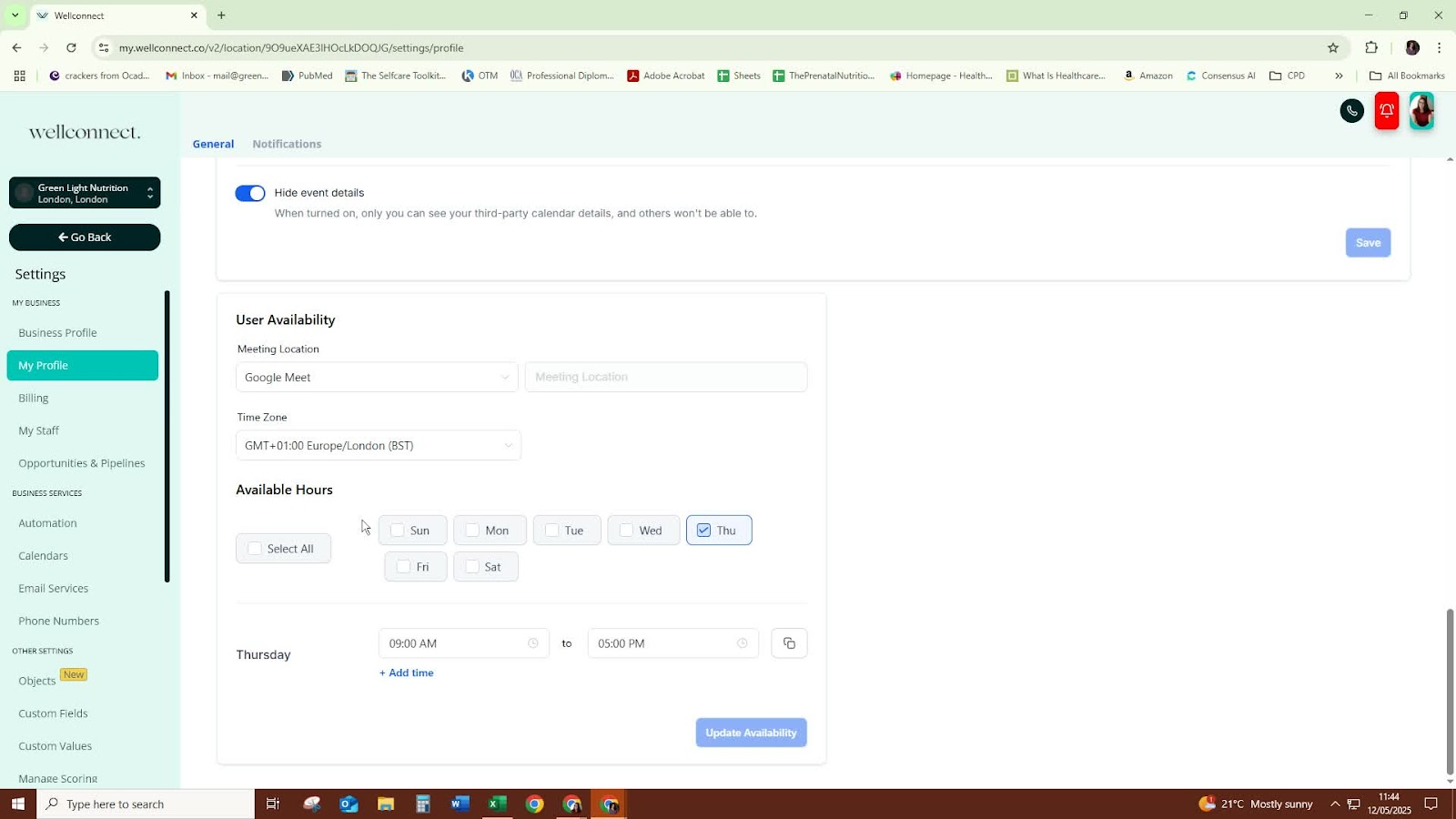
Specify which days of the week you are available for meetings.
6. Add Team Members 1:57
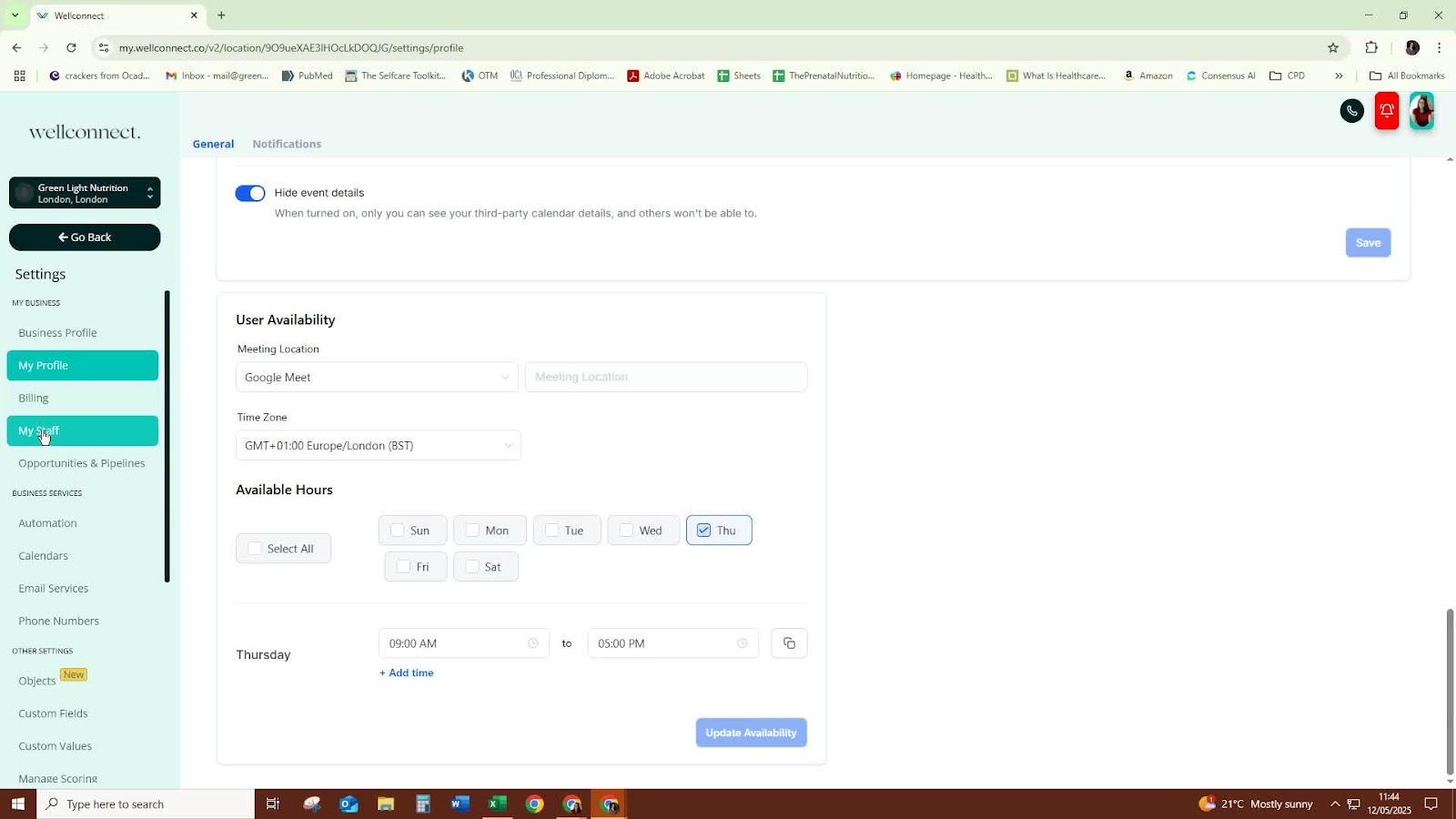
If applicable, add team members to the system.
Edit their profiles and assign roles and permissions.
7. Configure Voicemail Settings 2:27
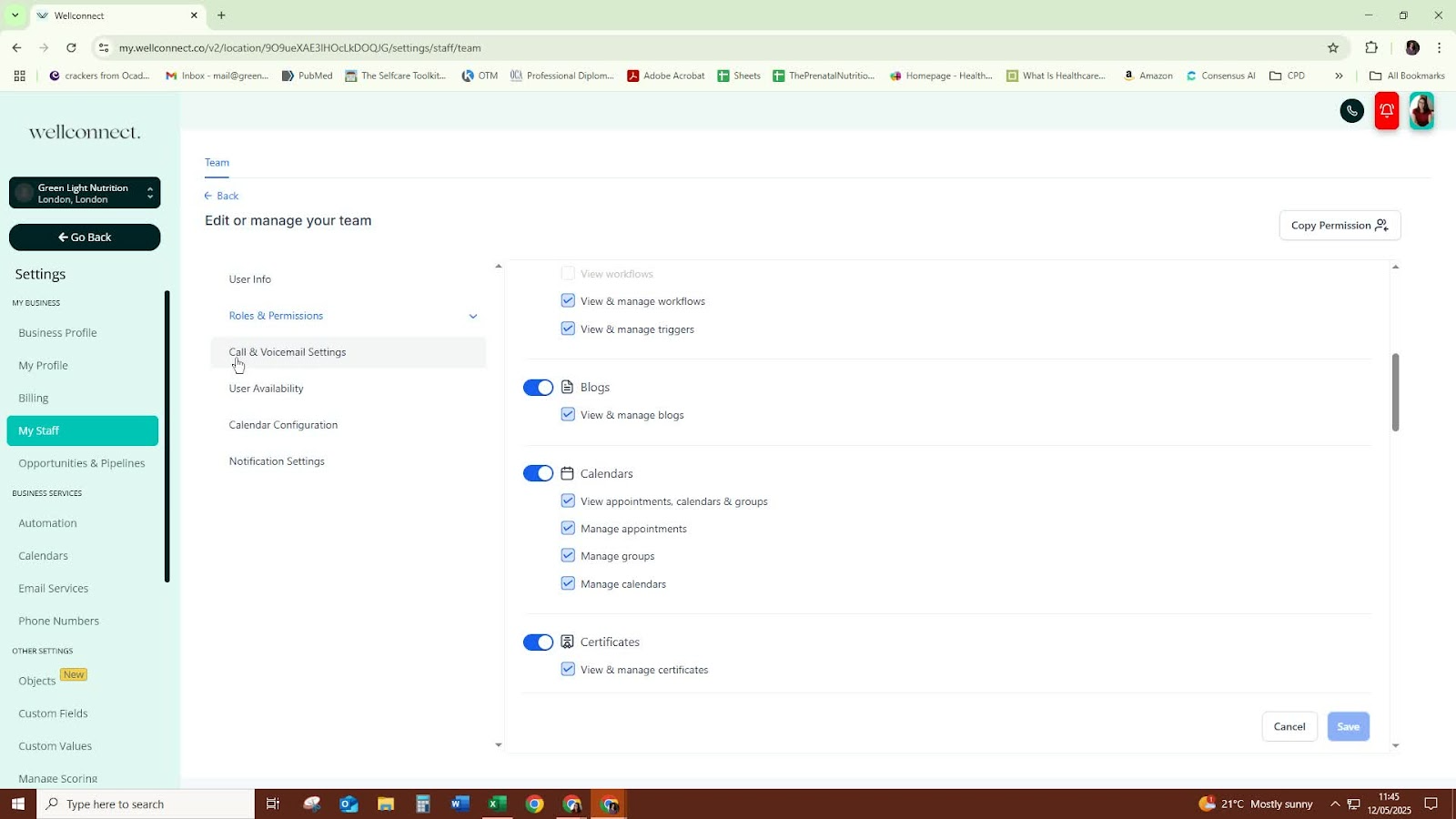
Upload a personalized voicemail if you have a connected telephone number.
8. Adjust Notification Settings 2:36
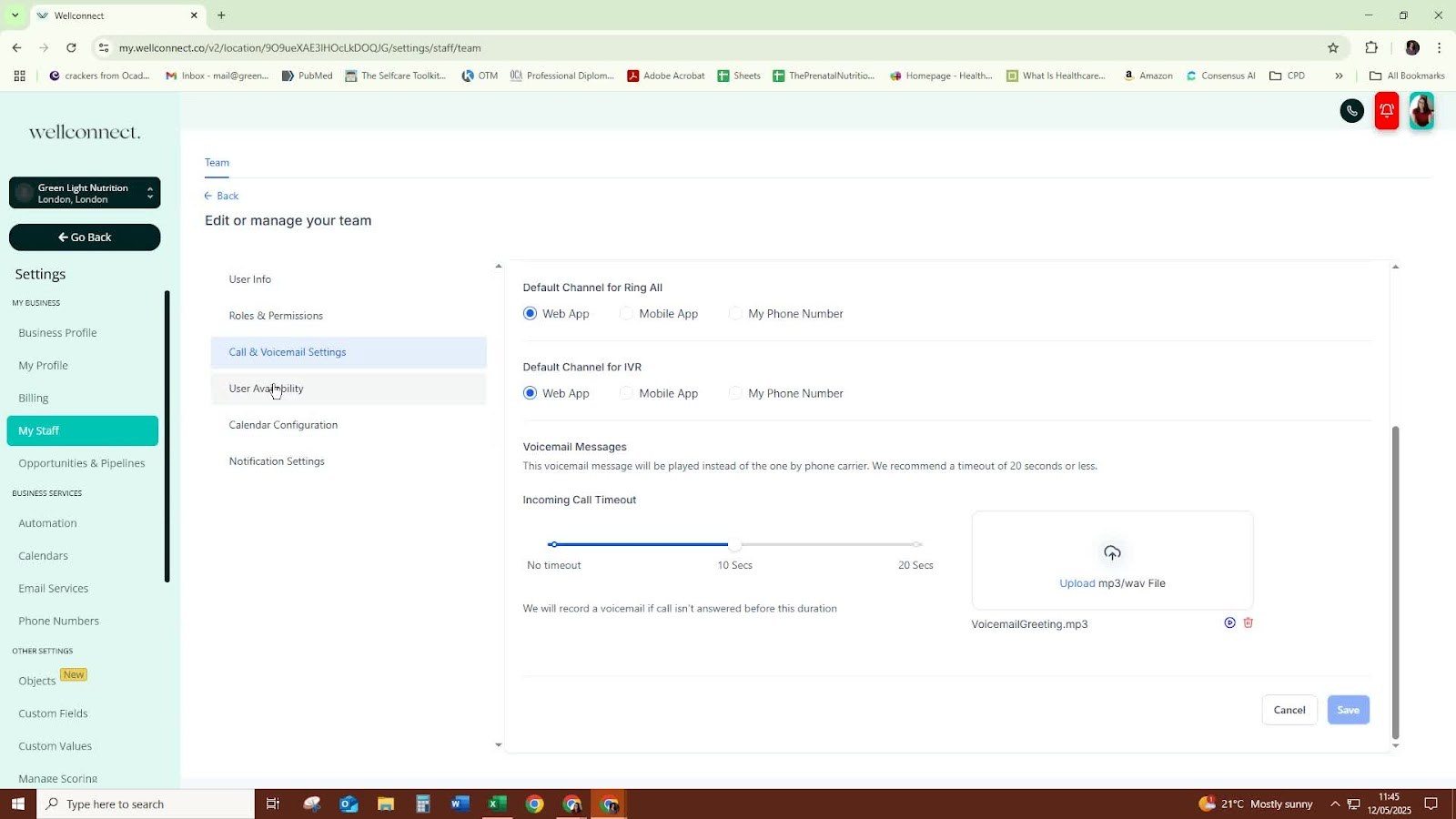
Choose how you want to receive notifications (in-app or email).
Avoid using SMS notifications to conserve your SMS allowance.
Cautionary Notes
- Ensure all information entered is accurate to avoid issues with communication and scheduling.
- Regularly review and update your profile and settings as necessary.
Tips for Efficiency
- Take a moment to gather all necessary information (logo, business details, email accounts) before starting the process.
- Use a consistent naming convention for email signatures and team member roles to maintain clarity.
Was this article helpful?
That’s Great!
Thank you for your feedback
Sorry! We couldn't be helpful
Thank you for your feedback
Feedback sent
We appreciate your effort and will try to fix the article